|
AAC MP3 Converter FAQ
|
AAC MP3 Converter converts AAC to MP3
and MP3 to AAC. The software is an ALL-IN-ONE
audio converter that supports more than 90 audio and video files as input, and
keeps ID3 tag when converting. The converter also supports batch conversion.
How does the software work?
AAC MP3 Converter converts more than 90 audio and video files
into AAC, AIFF, ALAC, AMR, FLAC, M4A, M4B, MP3, MP4, OGG, WAV, and WMA files.
You can follow instructions below to get started.
- Click "Add File" to choose audio and video files;
- Set target file format
- Click "Convert" to convert file
- Done.
For more detailed information, please click here.
How to convert AAC files to MP3 format?
- Click "Add Files" to choose AAC files;
- Choose "to MP3"
- Click button "Convert"
How to convert AAC files to WAV format?
- Click "Add Files" to choose AAC files;
- Choose "to WAV"
- Click button "Convert"
How to convert MP3 files to AAC format?
- Click "Add Files" to choose MP3 files;
- Choose "to AAC"
- Click button "Convert"
How to convert WAV files to AAC format?
- Click "Add Files" to choose WAV files;
- Choose "to AAC"
- Click button "Convert"
How to convert WMA files to AAC format?
- Click "Add Files" to choose WMA files;
- Choose "to AAC"
- Click button "Convert"
Does the software support batch conversion?
Yes, it does.
Which files does the software support?
The software supports the following files.
- Supported Input Files: 3G2, 3GP, 3GP2, 3GPP, 4XM, AAC, AC3, ADTS, ADX,
AFC, AIF, AIFC, AIFF, ALAW, AMR, AMV, APE, ASF, AU, AVI, AWB, CAF, CDA, CDATA,
CIF, DIF, DIVX, DNXHD, DRC, DTS, DV, DVD, DVR-MS, DXA, EAC3, FLAC, FLC, FLI, FLIC,
FLV, FLX, GSM, GXF, H261, H263, H263+, H264, IT, KAR, M1A, M1V, M2A, M2T, M2TS,
M2V, M4A, M4B, M4R, M4V, MID, MIDI, MJ2, MJPEG, MJPG, MKA, MKV, MLP, MLV, MMF,
MO3, MOD, MOV, MP+, MP1, MP2, MP3, MP4, MPA, MPC, MPE, MPEG, MPG, MPGA, MPP, MPV,
MTM, MTS, MTV, MVI, MXF, NSA, NSV, NUT, NUV, OGA, OGG, OGM, OGV, OGX, OMA, PSP,
PSX, PVA, QCIF, QCP, QT, RA, RAM, RCV, RGB, RM, RMI, RMVB, ROQ, RPL, S3M, SDP,
SHN, SMK, SND, SOL, SOX, SPX, STR, SWF, THD, TS, TTA, UMX, VC1, VFW, VID, VMD,
VOB, VOC, VQF, W64, WAV, WAVE64, WM, WMA, WMD, WMV, WV, XA, XM, XVID, XWMV, Y4M,
and YUV
- Supported Output Files: 3G2 (audio track), 3GP (audio track), AAC,
AAC for iPod/iPhone/iPad/iTunes/DSi, AC3, AIFF, ALAC (Apple Lossless), AMR, ASF
(audio track), AU, AVI (audio track), CAF, DTS, FLAC, FLV (audio track), M4A (MPEG-4
audio), M4B (MPEG-4 audiobook), M4R (iPhone ringtone), MKA, MMF, MOV (audio track),
MP2, MP3, MP4 (audio track), MPA, OGG, SWF (audio track), VOC, WAV, WMA, and WMV
(audio track)
Refer to the following instructions.
What encoding parameters does the software support for
AAC?
AAC MP3 Converter supports the following encoding parameters
for AAC.
- Codecs: AAC (Advanced Audio Codec)
- Sample Rate: supports 8000 Hz, 11025 Hz, 16000 Hz, 22050 Hz, 24000
Hz, 32000 Hz, 44100 Hz and 48000 Hz.
- Bit Rate: supports 16 kbps, 24 kbps, 32 kbps, 40 kbps, 48 kbps, 56
kbps, 64 kbps, 80 kbps, 96 kbps, 112 kbps, 128 kbps, 144 kbps, 160 kbps, 192 kbps,
224 kbps, 256 kbps, and 320 kbps.
- Channels: supports stereo and mono.
What encoding parameters does the software support for
MP3?
AAC MP3 Converter supports the following encoding parameters
for MP3.
- Codecs: LAME MP3 (MPEG audio layer 3)
- Sample Frequency: supports 8000 Hz, 11025 Hz, 12000 Hz, 16000 Hz, 22050
Hz, 24000 Hz, 32000 Hz, 44100 Hz and 48000 Hz.
- Bit Rate: supports 8 kbps, 16 kbps, 24 kbps, 32 kbps, 40 kbps, 48 kbps,
56 kbps, 64 kbps, 80 kbps, 96 kbps, 112 kbps, 128 kbps, 144 kbps, 160 kbps, 192
kbps, 224 kbps, 256 kbps, and 320 kbps.
- Channels: supports stereo and mono.
It's easy by AAC MP3 Converter. Just set an option before converting.
- Click "Options" and switch to tab "General"
- Set a number at "Output Volume". The number is described
below.
- < 100% - Decrease volume
- = 100% - No changes
- > 100% - Increase volume
For example:
- 50%: Decrease volume to half of original file
- 200%: Increase volume to double volume of original file
- Convert your file
- Done
Why can't I convert from MP3 to AAC at a fixed
bit rate?
The AAC file is encoded with MPEG4AAC codec. The codec doesn't fix bit rate
like MP3. The real bit rate used in target AAC depends on input sound. If MPEG4AAC
encoder thinks it's possible to get the best quality by a lower bit rate than
number user set, it use the lower bit rate to save space. What you care about
is if sound quality loses. If the encoder think no needs to use 192 kbps, it just
choose a best bit rate, which will get same quality and use less space.
The input format doesn't affect the bit rate; only real input sound affects.
The bit rate probably aren't same with different files.
How can I add a customized ID3 tag when converting
to MP3/FLAC/M4A/M4B/OGG/WMA?
It's easy. Please click "Options" -> "ID3" and then check
"Add ID3 tag", and then edit the custom ID3 tag information.
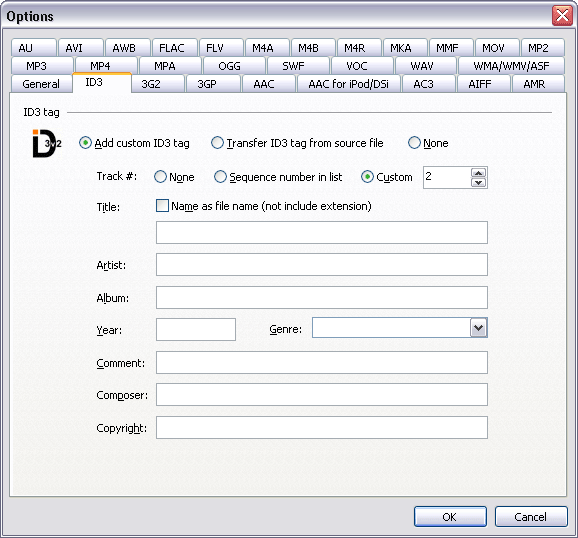
At "Title" field, if you check "Name as file name (not include extension)",
AAC MP3 Converter will set Title as file name when converting. For example: original
file name is "Happy New Year.aac", and then the title will be set as "Happy New
Year" automatically.
Is it possible to output destination files to a specified
folder?
Yes, it is. You could click "Options" -> "General" -> "Output"
section, choose "A custom folder" at "Output folder" combo-box and
click "Browse" button to choose an output folder.
Is it possible to output destination files to a specified
folder and keep directory tree of original files?
Yes, it is. Similar to question above, but you should check "Keep original
directory tree", thus the software will create folders according to path of
source file automatically when converting.
For example: Original file is "C:\Music\pop\test.aac" and
output folder is "D:\Output." If the option is checked, the output folder
will be "D:\Output\C\Music\pop."
How to split left and right channels into two files?
First, split the left channel.
- Set output channel to mono at target format option
- Check "L channel" at "Options" -> "General"
-> "When converting 2 channels to 1 channel, the output channel equals
to"
- Convert your file
Then, split the right channel, similar to instructions above, just check "R
channel" at step 2.
How to purchase the software?
We partner with FastSpring, who processes our orders. FastSpring accepts
payment by credit cards (Visa, MasterCard, American Express, Discover, and JCB),
bank transfer, check, and money order.
Click here to purchase the software online
What happens after I place an order?
You will receive an email confirming your order shortly after placing an order.
Then, within 24 hours, you will receive the second email with your registration
code, and instructions to get started!
I have more questions - who should I write to?
Please send your additional questions to <support at hootech.com>.
|